Space Lighting Effects in 10 Steps - Photoshop Tutorial

Abduzeedo means abducted in portuguese, the spelling is not exactly that, it should be abduzido. But the whole idea for the Abduzeedo's design is the space. I'm really fan of playing with this subject because we are sort of free to create whatever we want, and using Photoshop that really means everything.

So in this Photoshop tutorial I will show you how to create a space scene with some nice Lighting Effects in 10 Steps.

Step 1

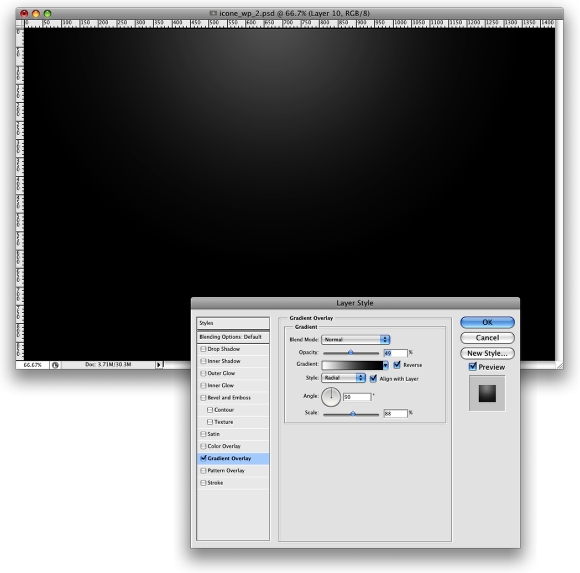
Create a new document, I'm using my computer screen's resolution (1440x900 pixels) so I can use it as a wallpaper later. Add a new Layer and fill it with any color then go to Layer>Layer Styles> Gradient Overlay. You can add a gradient layer as well, I simply prefer the Layer Styles.
Space Lighting Effects in Photoshop | Abduzeedo - abducted by design

Step 2 - Retro Colors

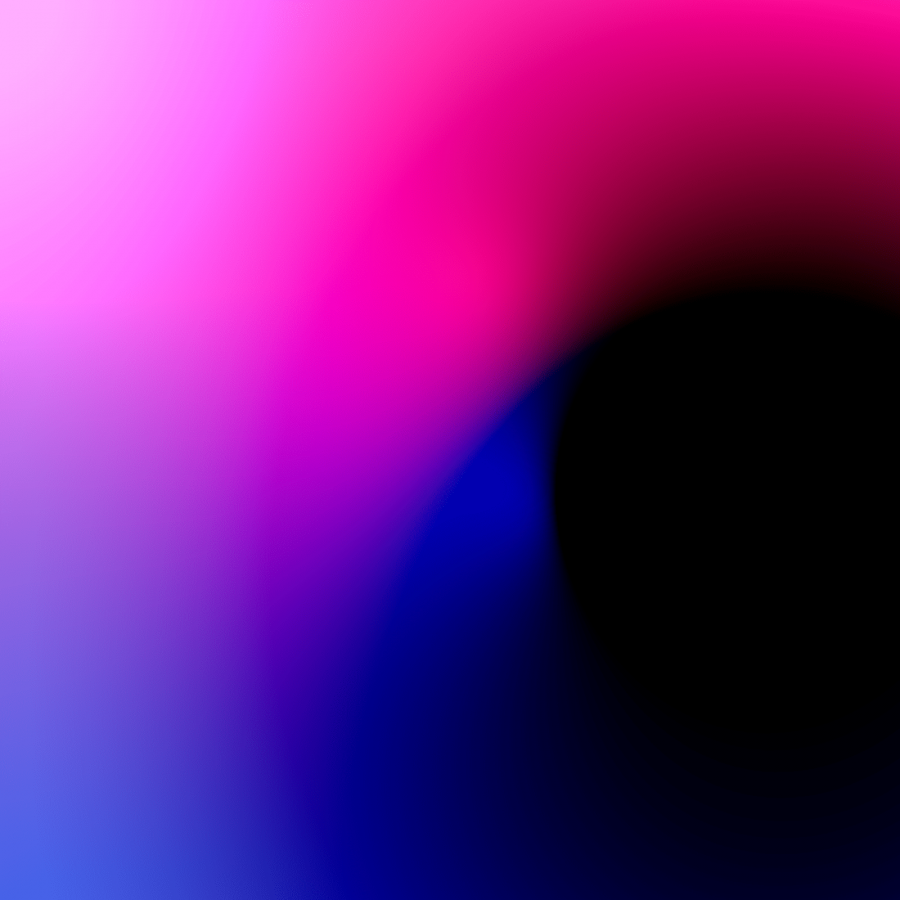
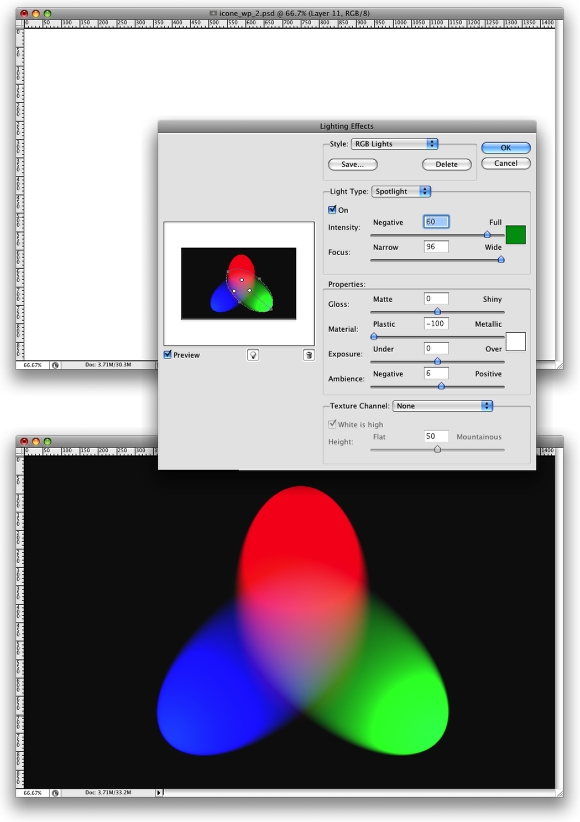
Create a new layer and fill it with white, then go to Filter>Render>Lighting Effects. Change the style to RGB lights. Use Negative 60 for the Intensity, Narrow 96 for the focus, and for the other options keep the same.
Space Lighting Effects in Photoshop | Abduzeedo - abducted by design

Step 3

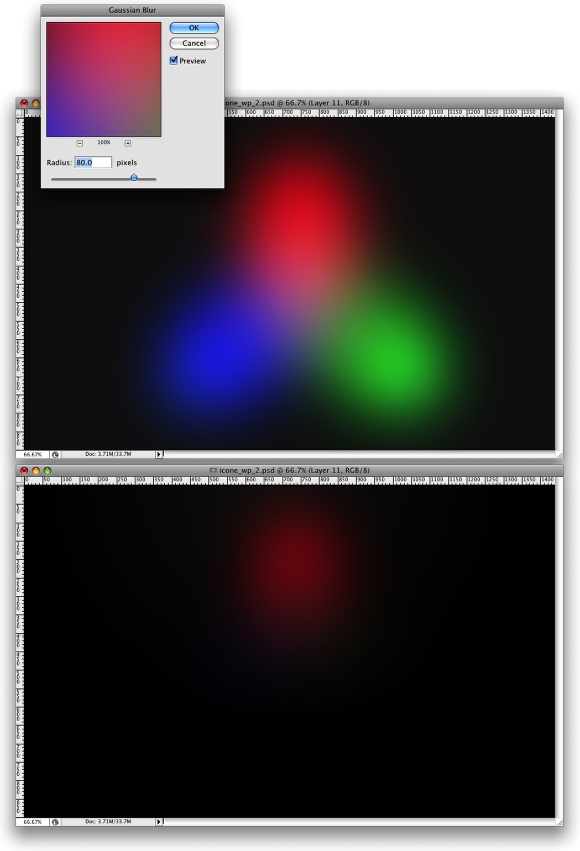
Lets add some blur, go to Filter>Blur>Gaussian Blur. Use 80 pixels for the Radius. The last thing here will be change the Blend Mode to Overlay. Doing that the RGB color will be hardly visible but later on with the other layers it will work ;)
Space Lighting Effects in Photoshop | Abduzeedo - abducted by design

Step 4 - Creating Stars

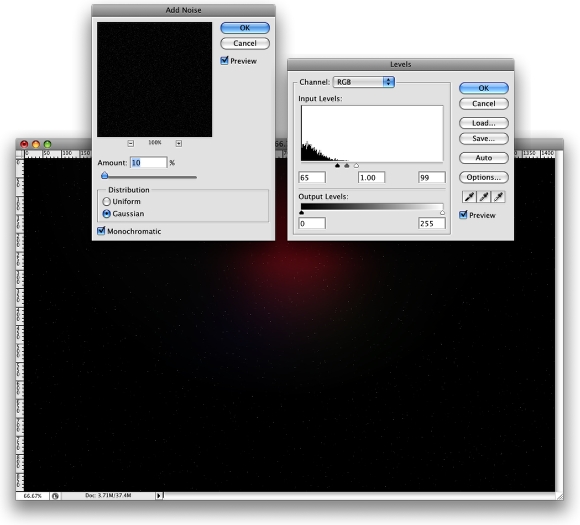
Creating Stars in Photoshop is something really easy. Create a new layer, fill it with black, and change the Blend Mode to Screen. After that go to Filter>Noise>Add Noise. Use 10% for the Amount, Gaussian for the Distribution and select Monochromatic. You will have a layer full of noise, then to create the start just change the levels of the layer, go to Image>Adjustment>Levels. For the Input Levels use 65, 1.00, 99. Doing that you will increase the black so just the bigger dots will appear, also you will increase the white, making the dots that appear brighter.
Space Lighting Effects in Photoshop | Abduzeedo - abducted by design

Step 5 - Nebula

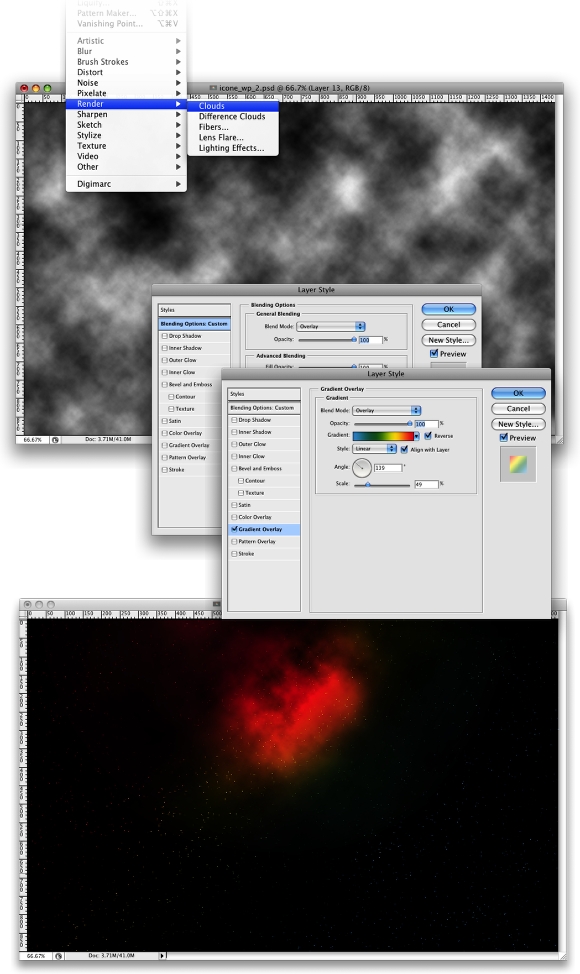
Now that we have the stars and the colors and some colors lets create the Nebula. To do that create a new layer and go to Filter>Render>Clouds. Make sure that your color were black and white for the background and foreground. Then just add some Layer Styles to do that go to Layer>Layer Style. First over the Blending Options, change the Blend Mode to Overlay. After that select Gradient Overlay. use Overlay for the Blend Mode and for the colors use a Cyan, Green, Yellow, and Red. Also change the Angle to 130º and the Scale to 49%.
Space Lighting Effects in Photoshop | Abduzeedo - abducted by design

Step 6 - Lens flare

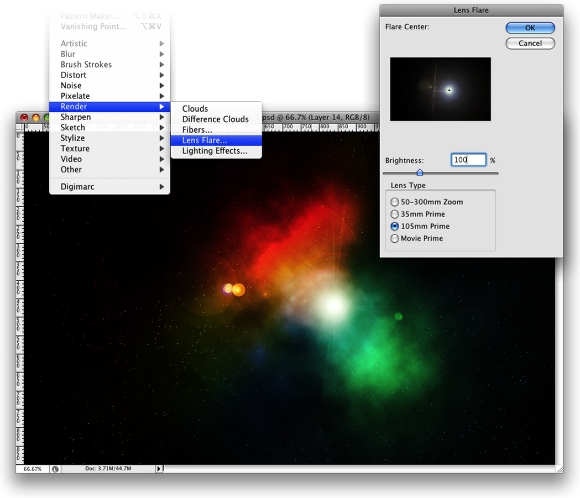
First, lets create a new layer and fill it with black, however, this time, add this layer in front of the background and beneath the other layers: (Stars and Nebula). Now go to Filter>Render>Lens Flare. This effect might be the most overused ever, like some people even say that using it you wil turn your design in an amateur piece. For me it's a nice filter and, if you use it right, it will give a nice touch to your image. For the settings use 100% Brightness and use 105mm Prime for the Lens Type.
Space Lighting Effects in Photoshop | Abduzeedo - abducted by design

Step 7 - Rays of Light

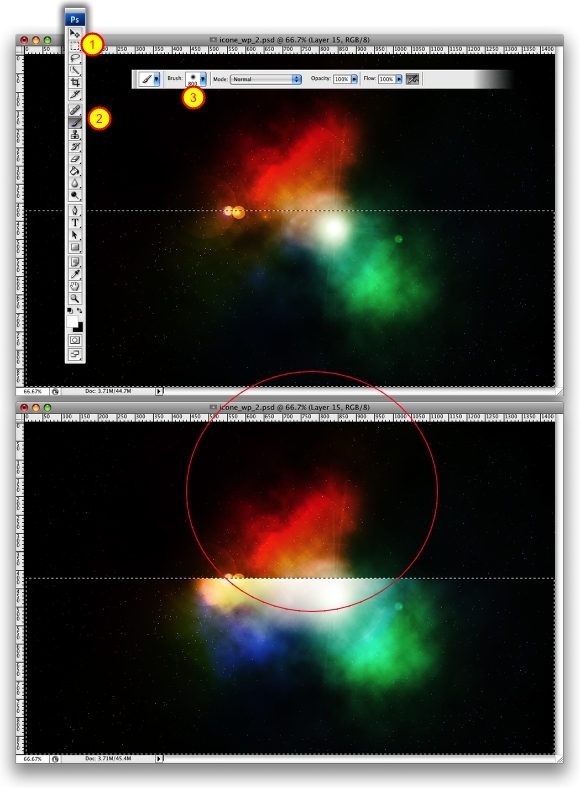
Now lets create the "A" of ray of lights. So create a new layer in front of the Lens Flare. Then select the Rectangular Marquee Tool (M) and create a rectangular selection like half of the height of the document. Use the image below for reference. After that select the Brush Tool (B). We will use a very big brush, 800px diameter and hardness 0%. Select white for the color and with just like a a bit of the brush inside the marquee (red circle) give a few clicks on the mouse button.
Space Lighting Effects in Photoshop | Abduzeedo - abducted by design

Step 8

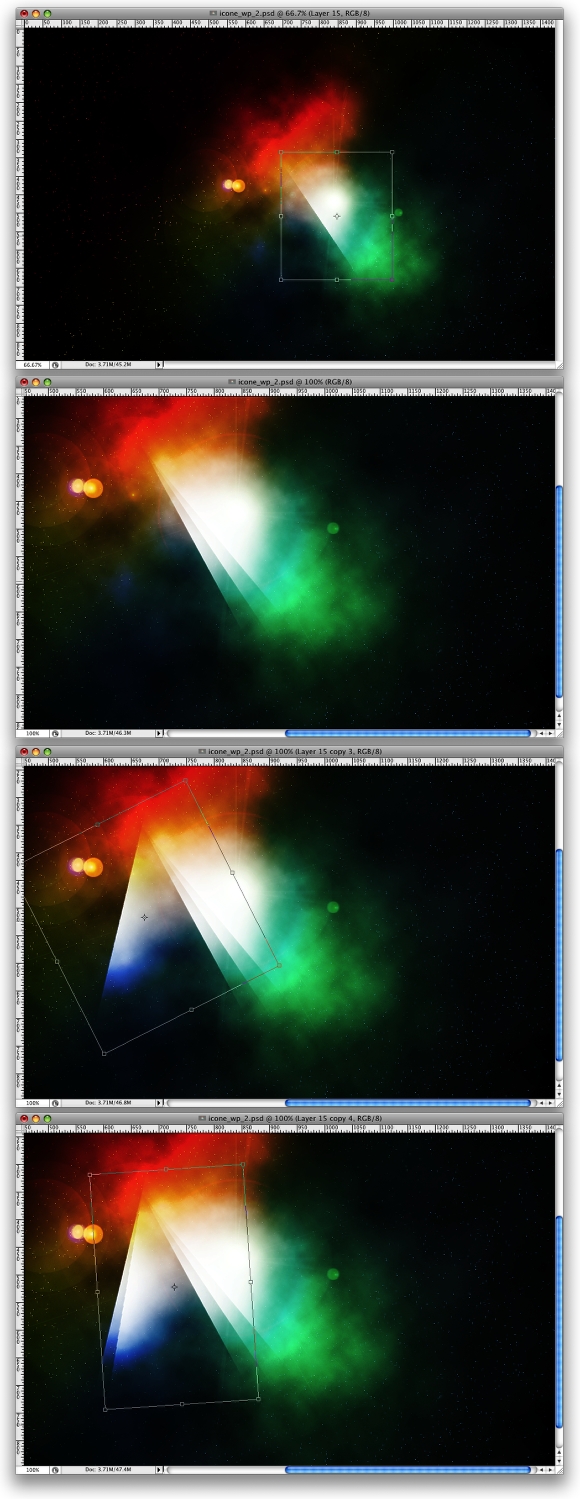
Now it's just about duplicating, resizing and rotating. The tip here is convert the original ray of light layer to Smart Objects, so you will be able to resize and rotate in a non-destructive way. After you create the "A", change the blend mode of the elements to Screen and use 80% opacity.
Space Lighting Effects in Photoshop | Abduzeedo - abducted by design

Step 9 - Adjustments

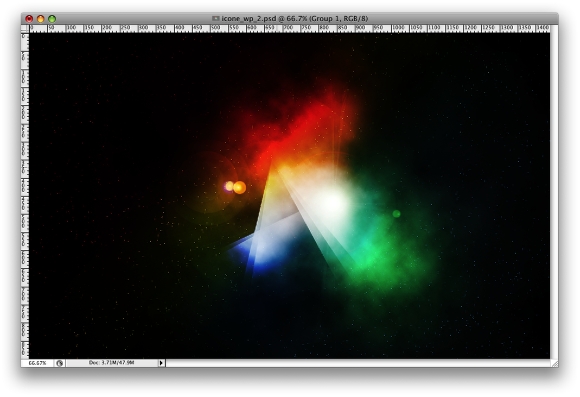
Now lets just adjust some opacities, change the the RGB light opacity to 80% and you can move the gradient overlay to test different color combinations as well.
Space Lighting Effects in Photoshop | Abduzeedo - abducted by design

Conclusion

In this tutorial we've learned how to create a very cool light effect that we often see is some of the NoPattern designs. Of course this tutorial was just an example and now you can improve it and apply it to your needs.
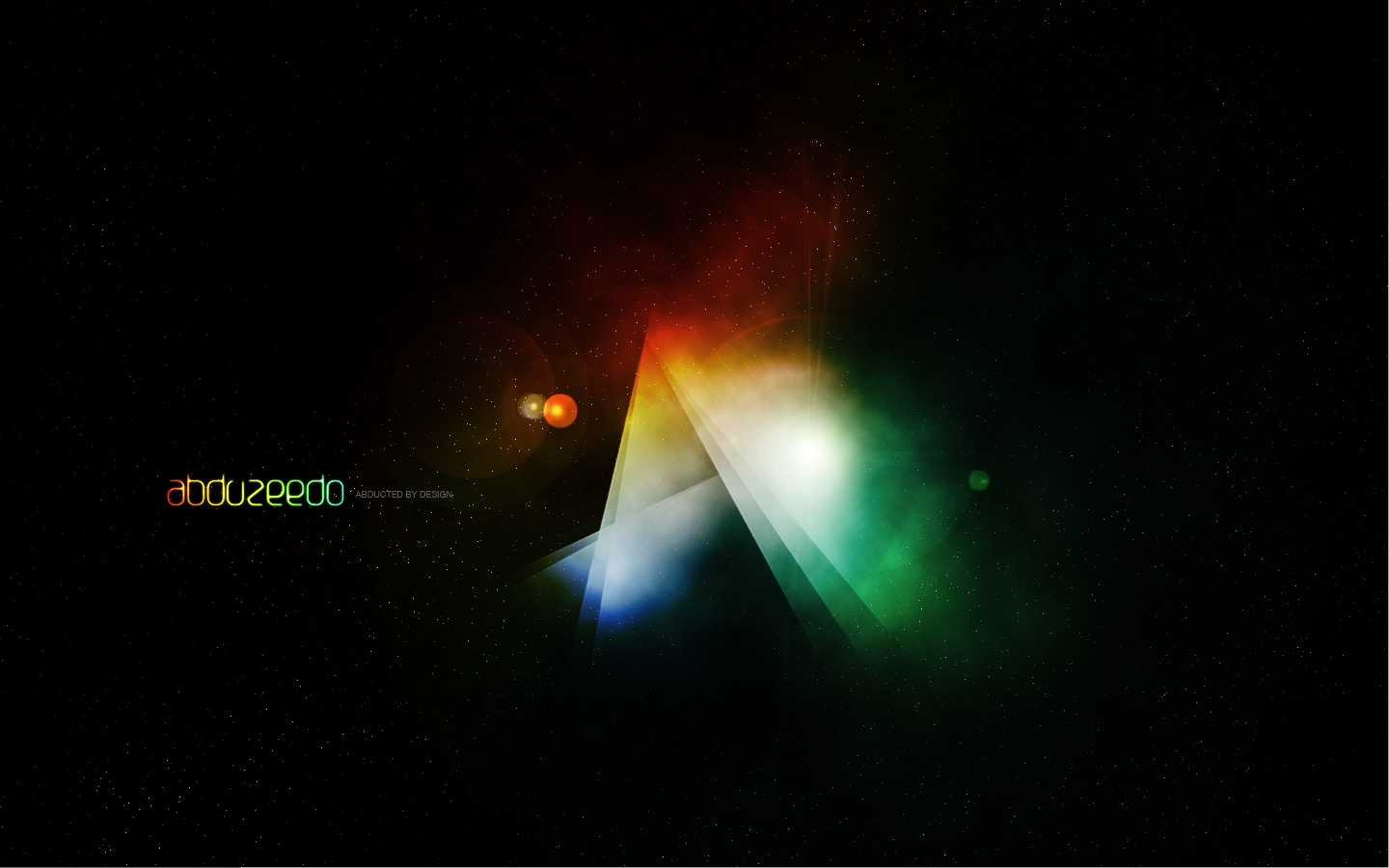
Space Lighting Effects in Photoshop | Abduzeedo - abducted by design
Click on the image to View full size

Download the PSD File

Click here to download the Photoshop file for this tutorial

About author

User picture

My name is Fabio Sasso, I'm a graphic/web designer from Porto Alegre, Brazil and I'm the founder of Abduzeedo. I hope we can share lots of information, tips, and ideas through abduzeedo.

Sponsored Links:

Thanks a lot for the comments... I will do a video tutorial showing how to create this effect... the lens flare is with a black background, sorry it was my mistake. If you have any questions send me an email.

Best ;)

abduzeedo's picture
abduzeedo 09/02/2008

Step 7 onwards is not so clear, any chance you could break it down further?

Anonymous's picture
Anonymous (not verified) 08/29/2008

umm no one is answering the question about the filter>render>lighting effects.. someone please help me! when i go to filter>render it wont let me click on lighting effects. its not an option. what am i doing wrong!?

rebecca 's picture
rebecca (not verified) 08/28/2008
jasmine celion's picture
jasmine celion (not verified) 08/19/2008

Thank You.

Pabitra Biswal's picture
Pabitra Biswal (not verified) 08/18/2008

thx a lot :-)
here's my first try http://flickr.com/photos/monike_pop/2762984738/

monike's picture
monike (not verified) 08/14/2008

This is very really nice tutorial, I like the color combination on this one. Thank you for sharing this tutorial.

Mark Abucayon's picture
Mark Abucayon (not verified) 08/09/2008

"Step 6 - Lens flare
First, lets create a new layer and fill it with white" I think it is"fill it with black". Anyway, it's a cool tutorial!

yida's picture
yida (not verified) 07/30/2008

How can i flat the image...and keep the leves you used in the "star" layer? 'cause when I want to flat the image, dont keep the same details.

By the way EXCELENT PAGE, and awsome work you do man..!!

axx
Dominican Republic Graphic Designer.

axx's picture
axx (not verified) 07/29/2008

Awesome! Luv it!

Martin's picture
Martin (not verified) 07/29/2008

Great tutorial, your colors are amazing

thanks for sharing

fedegrfao's picture
fedegrfao (not verified) 07/22/2008

step 6
"First, lets create a new layer and fill it with white"
fill with black!

just4fun's picture
just4fun (not verified) 07/18/2008

this is cool man! a few tweaks on the layer styles and suddenly your getting a new look! love it!

keep it up!

lordCovenant 07/09/2008

Great as usual fabio, I'll try this for sure

Rijalul Fikri's picture
Rijalul Fikri (not verified) 07/06/2008

cool site and tutorial, thanks!!
see my result on http://www.bevi-star.ch/wordpress/wp-content/uploads/2008/07/bevi-star.j...

Vinz's picture
Vinz (not verified) 07/04/2008

i can't do the "filter>render>lighting effects"
it says "Could not complete the Lighting Effects Command because a requested property value could not be found."
someone help me?

C's picture
C (not verified) 07/04/2008

Simply amazing...as a programmer trying to play around with Photoshop for quite some time, this is the first time EVER that I'm really impressed with the resulting effect from a tutorial. Great post, not only a great effect but also very easy to follow even for newbie designers like me. By the way, 90% of the quality tutorials I see around the internet today, come from this very site. It's really good to see brazilian design rocking the world :)

Abraços, e obrigado pelo grande trabalho que vocês tem feito!

rev087's picture
rev087 (not verified) 06/27/2008

i think theres something wrong with step 6

dont know's picture
dont know (not verified) 06/26/2008

i solved it allready

jona's picture
jona (not verified) 06/26/2008

hey great tutorial man
but i have a quistion
for some reason i cant you the Filter>Render>Lighting Effects.
maybe you know why??
thaks in advance

jona's picture
jona (not verified) 06/26/2008
Bruno Gurgatz's picture
Bruno Gurgatz (not verified) 06/23/2008

In step 6 the layer should be filled with black instead of white ;) Thanks for the great tutorial

DEMON's picture
DEMON (not verified) 06/20/2008

wooooah i love it!! But i moved the stars to the front so there white and not coloured. Great tutorial, cheers! :D

Jazzer's picture
Jazzer (not verified) 06/19/2008

[url]http://www.flickr.com/photos/15518052@N00/2590798361/[/url]

Thanks for the tutorial on this I created something different!

Ryan's picture
Ryan (not verified) 06/19/2008

Hi, this is a great lesson about some special effects and about the interpretation of filters, you are the great!

This is my work:

http://www.flickr.com/photos/carlitosway85/2591275212/

Thanks

Carlos's picture
Carlos (not verified) 06/18/2008

gr8 tutorial m8. Thanx 4 sharing.

Raj's picture
Raj (not verified) 06/14/2008

i got a small but very smart tip...unless someone already mentioned it above... you hit on smart objects in step 8 but in step 6, when you create the black layer, covert it to a smart object, then do the lens flare. Doing this will allow you to reposition and alter the brightness and lens type as well as an independent blend mode (just like you can within layer styles). Its non-destructive and totally awesome to easily see where the lens flare looks the best.

by the way, this is an awesome tutorial, and i had no clue how to make stars before... thanks!!!

sean steezy's picture
sean steezy (not verified) 06/10/2008

i figured it out!

to reposition the gradient layer style you click and drag where you want it to go when the layer style menu is open. (in cs3 it literally says "Click and drag to reposition gradient" at the top of the window) i was sweating that one out for a long time!

hah, great tutorial btw, it was fun and your directions are superb!

Scott's picture
Scott (not verified) 06/07/2008

I'm also having a hard time with step 1 :)

I have my layer style set up like you do but I don't know how to chance where the center of the gradient is.

thanks

Scott's picture
Scott (not verified) 06/07/2008

what if i want to print this image? it is RGB...can i do this effect in CMYK?

Anonymous's picture
Anonymous (not verified) 06/06/2008

good job fabio,but after cloud effect i could't understand properly the point..........

can u please tel me how can u convert cloud filter effect to light efect(layer
v)...............
please help me,,,,,,,,,,,,,,,,,,

sanjay malakar's picture
sanjay malakar (not verified) 06/06/2008

uhm... I couldn't make the lighting effect. It's not possible to click on it! :P

help? xD

Rodvinsky's picture
Rodvinsky (not verified) 06/06/2008

Really easy and good effect.
I did: http://i.nreklam.com/nreklam-celebrity-wallpaper-pack/
Thanks abduzeedo. ;)

Arda's picture
Arda (not verified) 06/06/2008

how did you put de radial gradient on the top of the image with de layer styles??? i always got it on center of document. sorry for my english.

Salva's picture
Salva (not verified) 06/05/2008

this is awesome.. had the same issue with step 6 but eventually worked things up a bit differently. love it

BogDinamita's picture
BogDinamita (not verified) 06/05/2008

yea you do use the cloud filter allot but every time its worth it.

Qvectors's picture
Qvectors (not verified) 06/05/2008

Very very nice, I had an issue with step 6 also. When I filled with white it was wrong, but a black fill did the job very nicely.

Loved it

Gudmundur's picture
Gudmundur (not verified) 06/05/2008

wonderful! terrible tutorial! thanks :)

ezoryak's picture
ezoryak (not verified) 06/05/2008

LOL, Yeah clouds is my favorite filter... I've even asked the Pixelmator guys to add that filter to Pixelmator. Lets hope.... But it's indeed a very useful filter ;)

abduzeedo's picture
abduzeedo 06/04/2008

Love the tutorial, as always! I have to laugh, though - you sure do love the "Clouds" filter! ;)

Anonymous's picture
Anonymous (not verified) 06/04/2008

Oh, I forgot the fill part on that step, I've changed the text and it was just fill the layer with white.

Thanks again ;) and feel free to show the results on the comments, like with the tag.

abduzeedo's picture
abduzeedo 06/04/2008

Wooow a really amazing tutorial, good job Fabio!

Ughetto's picture
Ughetto (not verified) 06/04/2008

Brilliant Fabio!! i will try it right now

Salva's picture
Salva (not verified) 06/04/2008

great tut!

...

er, but I seem to have a lame issue at step 6 (lens flare)...
would anyone be so kind as to provide the layer order w/ blending mode?

sorry!

;-))

uncleserb's picture
uncleserb (not verified) 06/04/2008
kylesteed's picture
kylesteed (not verified) 06/04/2008

abduzeedo

amazing tut...but step 6 you say create a new layer but what the color should be fill it... white or black!!?

Khalid Almutiri's picture
Khalid Almutiri (not verified) 06/04/2008

I'll be trying this out. Nice one, Fabio.

Luke's picture
Luke (not verified) 06/04/2008

I love the designs and tutorials based on lighting and the space it fills! great work!

godonholiday's picture
godonholiday (not verified) 06/04/2008

The best explayned tutorial ever. im am basicaly a beginer and i love your work. keep it up. thanks again

tranced's picture
tranced (not verified) 06/04/2008

nice tut. Keep up the good work!

D.A.T.'s picture
D.A.T. (not verified) 06/04/2008

wow, so cool, but would you, or anyone. Know how to make the first effect in the gimp? if not could someone provide a high quality png of the first rgb lights image?

whatever's picture
whatever (not verified) 06/04/2008

Nice tutorial, Thanks!

Andrew's picture
Andrew (not verified) 06/04/2008

YES! I was waiting for this! :D Excellent :P

Markus Nielsen's picture
Markus Nielsen (not verified) 06/04/2008

Thank you!
U make my 'design life' easier.

:)

Andrea Pelizzardi's picture
Andrea Pelizzardi (not verified) 06/04/2008

@Andrea Pelizzardi thanks a lot, I've corrected that mistake....

Thank you all for the commments ;)

abduzeedo's picture
abduzeedo 06/04/2008

Bueno, pues nada, desde latinoamerica te digo, este blog se ha convertido en mi biblia para diseñar, felicitaciones.

That just says that I love this blog and it has become into my design byble. thanks.

Mancho's picture
Mancho (not verified) 06/04/2008

There's an error.

<<<
Step 3
Lets add some blur, go to Filter>Render>Gaussian Blur.
>>>

To go to Gaussian Blur, you must: Filter>Blur>Gaussian Blur

Nice tutorial.

Andrea Pelizzardi's picture
Andrea Pelizzardi (not verified) 06/04/2008

Nice lens flare !

Arnaud Alves's picture
Arnaud Alves 06/04/2008

Awesome! There are so many good lessons in this!

Scott's picture
Scott (not verified) 06/04/2008

looks cool!
Thanks for the tutorial :D

CC's picture
CC (not verified) 06/04/2008

Cool tut!! Thanx for sharing

giackop's picture
giackop (not verified) 06/04/2008

Post new comment

The content of this field is kept private and will not be shown publicly.
If you have a Gravatar account, used to display your avatar.
CAPTCHA
This question is for testing whether you are a human visitor and to prevent automated spam submissions.